
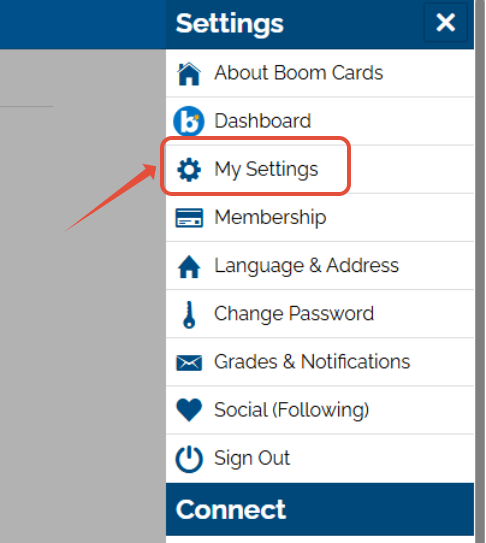
To change the primary email address on your Boom Learning account, open the Settings menu in the upper right corner of the page.
Click on My Settings in the drop-down. This will take you to your account tab.
Click on the pencil or anywhere on your email to edit the text.
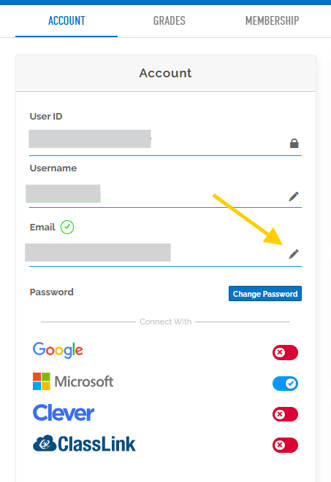
When you're finished, click anywhere on the page; it will automatically save.
An update or change to your email address will not impact anything else on your account.
Note: that login assistants (including Google, Clever, ClassLink, and Microsoft) will not automatically update after your primary email is changed.
You can also add or update a sign-in assistant or change your password on this page.
To add or update a sign in assistant, such as Google, Clever, ClassLink or Microsoft, click the slider beside each logo. Then, follow the prompts.
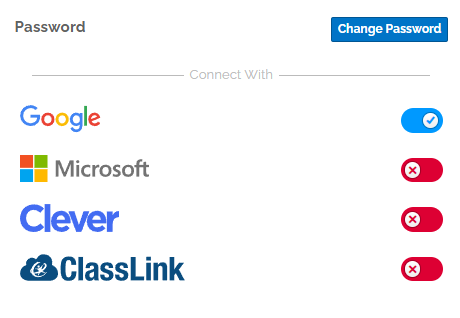
You'll know it's all linked up and good to go when the slider across from Google is blue instead of red. Click again to turn it off and the slider will go back to red.
To update a sign-in assistant with your new email, first turn it off by clicking to toggle back to red. Then click again, and follow the prompts as you would for a new set-up.
Note: Cookies must be enabled for Google or Microsoft sign in to work.
If you can no longer access your account because your old way of logging in is no longer available to you, please contact us and include one of the following:
- A receipt from the purchase of points or a membership on the account
- Information about redemptions only you could know (e.g. a list of titles within a bundle of Boom Cards in your Library)
- Information about student accounts you created that is not public information
- A photo of a school ID from your old school
- A paystub, offer letter, or exit letter from your former school
This is required to protect your privacy and that of students we need you to provide some proof that the existing account was yours before we can change the email for accessing the account.
If you have any further questions, please feel free to email us at help@boomlearning.com or call us at (833) WOW-BOOM. A real human will happily help you!