You can print out physical copies to give to your students or send them screenshots of their information. We recommend keeping a copy for your own reference and to be duplicated in the event a student loses their own.
Login Cards
To view and print login cards for your students go to the Classes tab and select a classroom with students in it.
1) Click "Print Roster/QR" button.
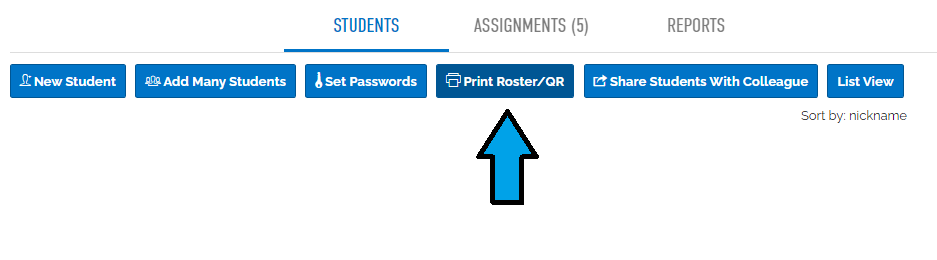
This will open a new box with options to select from and a complete list of students in that class.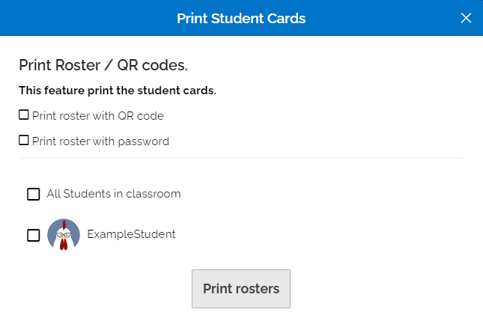
2) Select which options you would like for your Student Card.
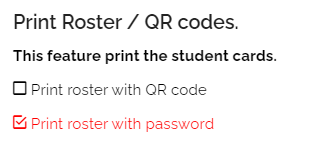
To include password information, check the box beside "Print roster with password."
Note: this option is highly recommended any time you change a password, since you will not be able to retrieve the newly generated password later.
Picture passwords are also supported. To generate a Student Card with a Picture Password, check the box next to "Use Picture Passwords for this classroom." 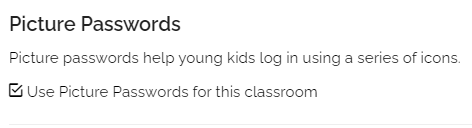
Note: picture passwords are recommended for younger students or those who struggle with character-based passwords.
To generate and include a QR Code check the "Print roster with password and QR code" checkbox.
Once checked, an additional option will appear allowing you to Reset the QR Codes (and passwords) if you would like.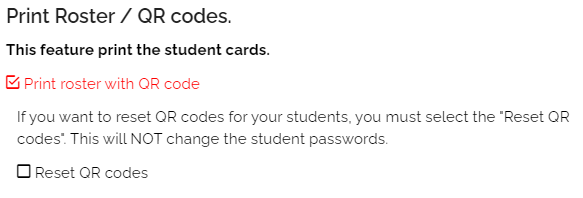 This will generate a QR Code in the upper right corner of the Student Card.
When a student scans the QR Code, they will be automatically logged into that Boom Learning Student Account. 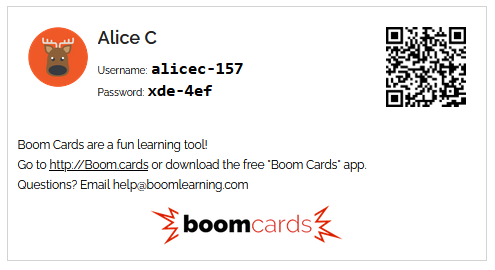
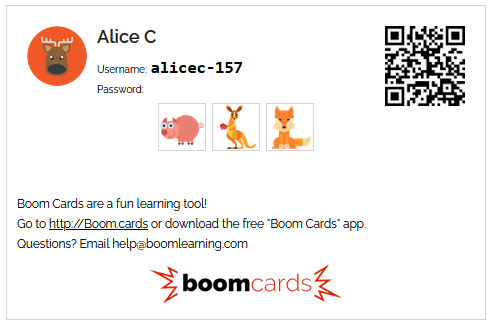
Please ensure students only have access to their own QR Codes to prevent them from logging in under another student's account.
3) Select the student(s) you would like to receive a new Student Card.
To select every student in the class automatically, check the box beside "All Students in classroom."
To create a Student Card for just one or some of the students in that class, locate the individual student(s) and check the box next to their name and icon.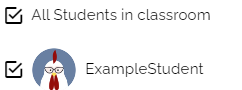
4) Click the blue button at the bottom of the box when you are ready to print.
Then follow the prompts on your printer or take a screen shot, and cut or edit out the individual card(s) to share with your student(s).
Note: Passwords are encrypted and not stored in human-readable form for privacy and security reasons. Because of this, making this type of login card will reset and randomize the passwords for each selected student, and we cannot show you these passwords again after the login card has been created. If the student changes their password or the teacher changes the student's username, the QR code will no longer work until a new login card is created.
To generate a Student Card with just a student's username click on the Print Roster/QR button and skip down to select the student(s) - either by clicking next to "All Students" or selecting the box beside the individual student(s) you'd specifically like to print.
Then click the "Print rosters" button at the bottom.
This will create a Student Card without any password information. A QR Code can be added to this card (see above).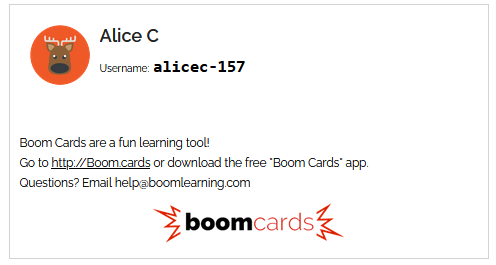
Note: Students can refer to this card for their Username, but they will need to be given their password information or a QR Code in order to login.
Using Student Cards
Students can use their Student Card to scan the QR code for automatic login or refer to it for their user name and password to login either through their browser or on the app.
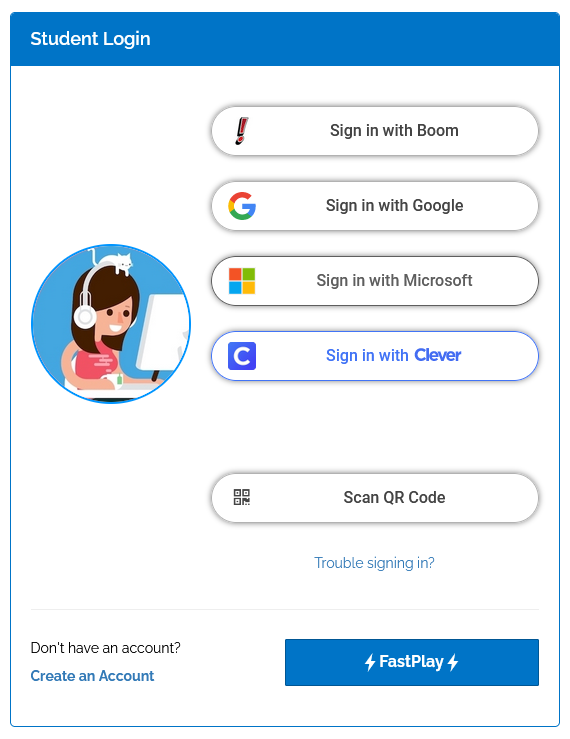
Students click "Sign in with Boom" and follow the prompts to enter their username and password on the Student Login page.