
This guide will walk you through how to integrate your Google Classroom with your Boom Learning account. This article does not explain how to create a Google account and assumes your students already have Google accounts created.
If you already have a Google Classroom that is ready to import, simply click the "Importing Your Google Classroom to Boom" link in the table of contents to skip ahead.
TABLE OF CONTENTS
Creating A New Google Classroom Roster
If you have never used Google Classrooms before, this section will cover the basics of how to create a new Google Classroom and add students to it. These steps ensure that your classroom is set up correctly to import into your Boom account.
Creating a New Google Classroom
First, navigate to the Google Classroom home page and sign in with the Google account that you want to use as a teacher. Once on the Google Classroom, this is more or less what you will see:
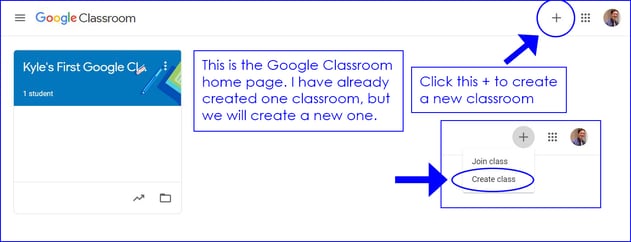
If you have any existing Google Classrooms, they will appear in a list like the above screenshot. To create a new Google Classroom, please follow the steps below.
Click on the Plus Icon ( + ) in the upper right corner of the page, and then click Create class.
A window will appear that will let you put in some details about the classroom. It needs a name at least, and you can change these details later if you wish: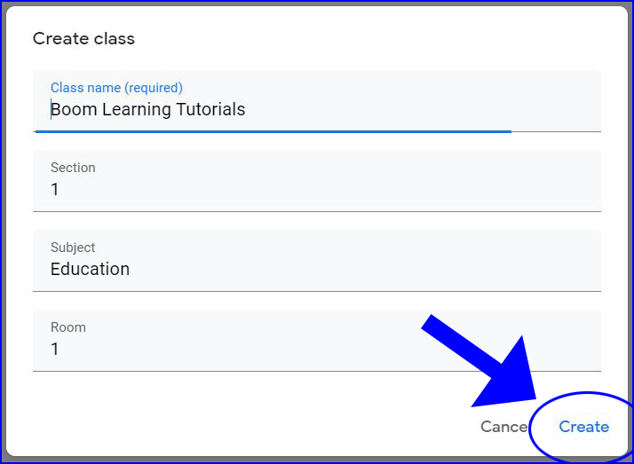
Once you have the data you wish written in, click the Create button.
You will then immediately be redirected to the page of the new classroom you created. Now you can start adding your students.
Adding Students to Your Google Classroom
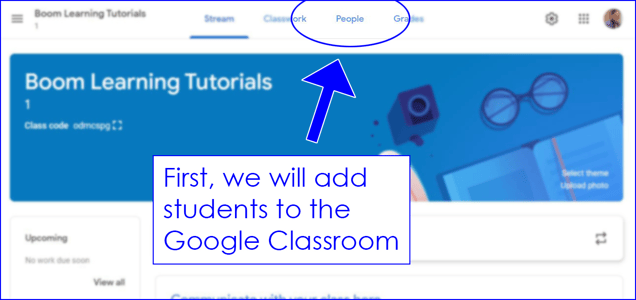
Click on the People tab in the menu at the top of the page.
You will be shown a new page where you can add students to the classroom: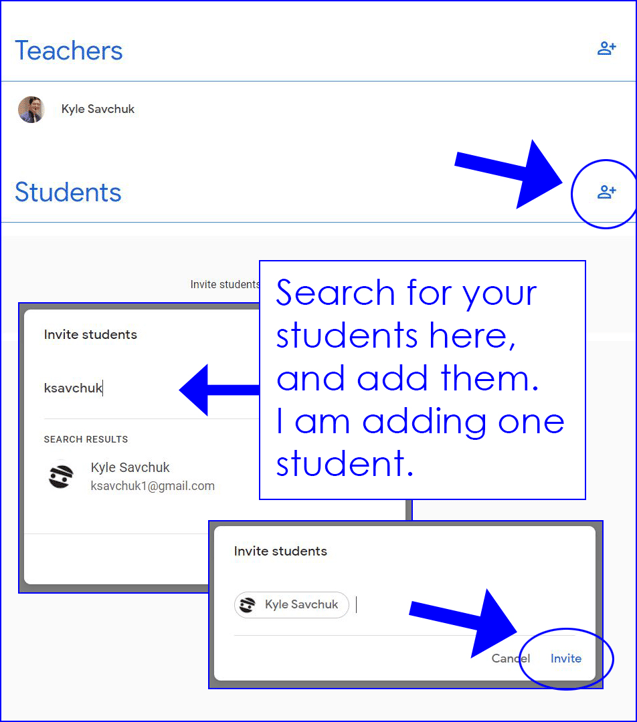
Importing Your Google Classroom to Boom
Now that your Google Classroom is set up, you can import your student roster into your Boom Learning account. Navigate back to the Boom website and open your Classes tab.
In your Classes tab, and look at the menu on the left-hand side.
Click the "Google" button underneath Import From.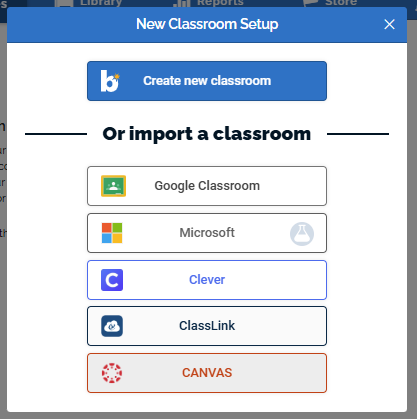
A window will appear allowing you to choose the Google Account that you created your classroom with. Click on that account, and enter your sign-in credentials if necessary.
A new window will pop up. It will list all of the Google Classrooms associated with the Google account you chose in the previous step. Click on Import Roster, which will import a new classroom (you can also use this to Re-Import Rosters if new students join the Google Classroom later).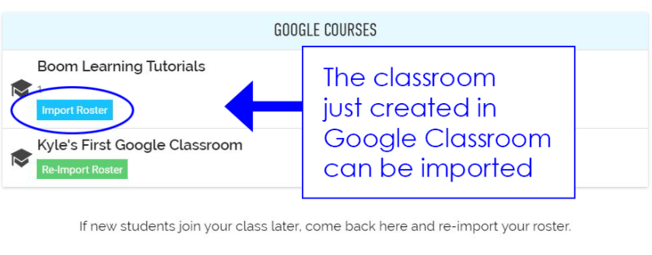
Immediately after clicking Import Roster, you will see the classroom and its students appear in your student list.
Assigning Decks to your Imported Students
Now that your students have been imported to a Boom Learning classroom, you can assign Boom Card decks to them through both Boom Learning and Google Classroom.
If you do not need your student's performance tracked, and only want to use the deck as practice or review, simply create a Fast Pin from your Library and post it as an assignment in your Google Classroom. If you want detailed student reports, you can use a Hyperplay Link instead of a Fast Pin. Hyperplay links require a student to log in before they can play the deck.
For detailed instructions on how to assign decks to your Google Classroom students, please refer to this guide: Assigning Boom Cards in Google Classroom.
Troubleshooting
Here are some common problems you may experience along with the most probable solutions. For detailed troubleshooting steps, please refer to our separate guide: Troubleshooting: Google Classrooms.
If your imported Google roster is missing student(s), it may be because...
- The student has not fully joined the Google Classroom
- The student has a teacher account
- Your teacher account has reached its student limit
If a student can't sign in, it may be because...
- The student is not signing in with Google
- The student has not been imported from Google Classroom yet and does not have a Boom account made
If a student can't see assignments, it may be because...
- Decks have not been assigned to your classroom
- The student has a teacher account or is logged into a different account