
This guide walks you through connecting your ClassLink account to Boom Learning and importing your students so they can access Boom Cards directly from their ClassLink dashboard.
This article does not explain how to create a ClassLink account and assumes your students already have ClassLink accounts created.
TABLE OF CONTENTS
- Why Connect ClassLink To Boom?
- Before you Begin
- Connecting Your ClassLink Account To Boom
- Importing Your ClassLink Students
- How Students Access Boom Learning
- You're All Set!
- Need More Help?
Why Connect ClassLink to Boom?
Connecting ClassLink to Boom Learning helps simplify student access and reduces the need to manage additional usernames and passwords. Once connected, students can launch Boom Cards directly from ClassLink and access assigned activities more easily.
Benefits include:
- Faster student login
- Easy student importing
Before You Begin
Make sure the following requirements are met before starting:
✅ You have a Boom Learning teacher account.
✅ Your students already have ClassLink accounts.
✅ Your ClassLink administrator has enabled access to the Boom Cards (oAuth) application.
✅ You can log in to both Boom Learning and ClassLink.
Note: This guide assumes you already have a ClassLink account and that student accounts have been created.
ClassLink importing requires authorization from your district's ClassLink administrator. If you see a pop up in the import process that you admin has not authorized the ClassLink import, contact your administrator for assistance.
Connecting Your ClassLink Account To Boom
Step 1: Add Boom Cards to Your ClassLink Launchpad
- Navigate to the My Apps screen in ClassLink Launchpad.
- Right-click anywhere on the page.
- Select New App.

- Search for Boom Cards.
- Add the Boom Cards (oAuth) application to your dashboard.
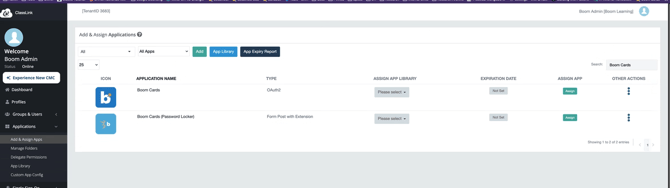
Please note: The Boom Cards (password Locker) will not log your students into Boom Cards.
Step 2: Launch the Boom Cards App
- Click the Boom Cards (oAuth) icon on your ClassLink dashboard.

- If you're already signed in to Boom Learning, you'll see a window asking you to connect your accounts.

- If you're not signed in, log in to Boom Learning when prompted.
Step 3: Connect Your Accounts
- Click Connect.
- You will be taken to your Boom Learning Settings page.
- Enable the ClassLink connection toggle.

- Wait for the confirmation message indicating your accounts have been successfully linked.
✅ Your accounts are now connected and ready for student import.
Importing Your ClassLink Students
Step 1: Open Your Classes tab
- Log in to Boom Learning.
- Navigate to the Classes tab.
- Click “+ New Classroom” button.
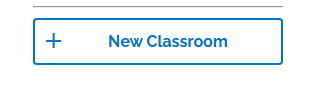
- Locate the Import from ClassLink button.
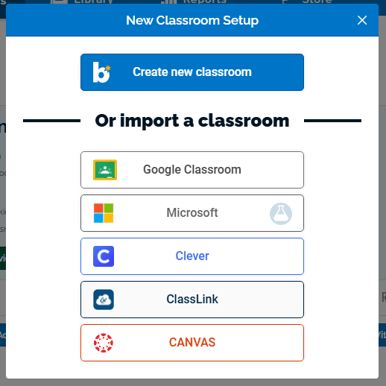
Important: The Import from ClassLink option is only available if your account has not reached its student seat limit or classroom limit.
Check your account Limits here.
Step 2: Import Your Students
- Select the ClassLink button from the import modal.
- Choose the classes you would like to import.
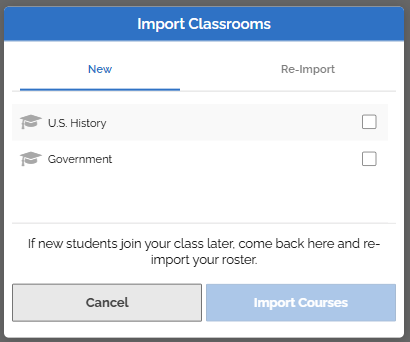
- Confirm the import.
✅Once completed, your students will be added to Boom Learning and linked to their ClassLink accounts.
What Happens Next?
After importing:
- Student accounts are connected to ClassLink.
- Students can launch Boom Learning directly from ClassLink.
- You can assign Boom Cards as you would with any other Boom classroom.
- Student progress will be available through Boom Learning reports after assignments are completed.
For more information about assigning activities, see the Assigning, Un-assigning, and Playing Boom Cards article.
Adding New Students Later
Need to add additional students?
Use the Add/Re-Import Students button on your classroom dashboard at any time. This allows you to update imported rosters when new students are added.
If you ever need to re-import or add a new student, just use the dedicated "Add/Re-Import Students" button on your Classroom dashboard.

Please Note: Boom Learning does not support Automatic Nightly Rostering through ClassLink.
How Students Access Boom Learning
Students imported using ClassLink can login from the Student login page and the SSO Application!
Student Login Steps from The Student Login Page
- Visit Boom and click the Student login.
- Select the "Sign in with ClassLink" button.
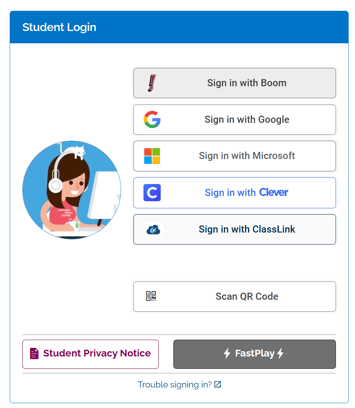
- The student will need to use their ClassLink login info to sign in.
- Assigned activities are immediately available to play.
Student Login Steps using SSO
- Sign in to ClassLink.
- Open the Boom Cards app.

- Boom Learning automatically logs the student into their linked account.
- Assigned activities are immediately available to play.
You're All Set!
Congratulations! Your ClassLink and Boom Learning accounts are now connected.
You can now:
- Import students from ClassLink
- Assign Boom Cards to your classes
- Track student progress
- Reduce login challenges for students
- Provide quick and easy access to learning activities through ClassLink
Need more help?
Our Boom Training Academy materials help educators learn the basics, find resources faster, and use Boom with confidence so that you can spend less time figuring out technology and more time with your students.
Interested? Access and interact with Courses here: Boom Training Academy
Are you a part of a managed Boom School account? Get private training! Ask your school or district administrator to schedule a complimentary training session with us.
If you have any further questions, please feel free to email us at help@boomlearning.com or call us at (833) WOW-BOOM. A real human will happily help you!