
Are your students having issues logging into their accounts? Don’t worry — this is very common, especially when you’re just getting started with Boom. Once your students get used to their login routine, this becomes much faster and easier.
Table Of Contents:
- Common Problems (Quick Fixes)
- If Multiple Students Can’t Log In
- Prevent Login Problems Before Your Session
- Still Stuck?
🔍 How did you create your classroom?
This is the #1 cause of login issues.
|
If you use… |
Students should click… |
That looks like... |
|
Boom Classroom |
✅ Sign in with Boom |
|
|
Google Classroom |
✅ Sign in with Google |
|
|
Clever Classroom |
✅ Sign in with Clever |
|
|
ClassLink Classroom |
✅ Sign in with |
|
|
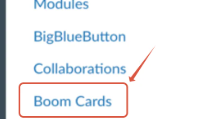
Canvas Classroom |
✅ Use Boom directly |
 |
|
Login Cards (QR) |
✅ Scan QR or use printed login |
|

💡 Tip: If students click the wrong button, login will fail even if everything else is correct.
🛠 Common Problems (Quick Fixes)
❗ “Please wait for your teacher to finish setup”
✅ Fix:
- If using Google Classroom → import your class first
- If using Boom Classroom → have the student click Sign in with Boom, not Google.
💡 This usually happens when students choose the wrong sign-in method.
❗ “User not found” / Error 403
✅ Fix:
- Open your Classes tab
- Open the Class the student is in
- Copy the student’s username
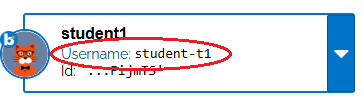
- Have them type it exactly
Important:
- Usernames are NOT the same as student display names
💡 Tip for future: Keep usernames simple but unique (ex: “zs.billy”)
❗ Incorrect password
✅ Fix:
- Double-check username first (many errors come from wrong username)
- Reset password from your classroom if needed
- reset a student password using the dropdown menu next to their name
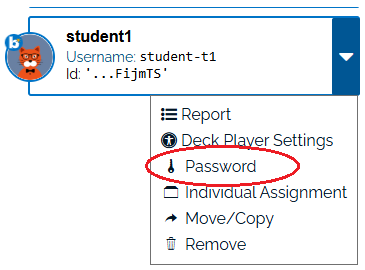
👉 If using any other login like Google, Clever, Classlink, or Canvas:
- Password must be reset through the external site, not Boom.
❗ Google sign-in button does nothing / freezes
✅ Fix:
- Allow pop-ups
- Enable third-party cookies
- Try a different browser
💡 This is usually a device/browser setting issue
❗ QR code won’t work
✅ Fix:
- Recreate the login card
Why this happens:
- QR codes stop working if username or password changes
👥 If Multiple Students Can’t Log In
This saves you time when a whole group is stuck.
✅ Check:
- Internet connection
- Browser (switch to Chrome/Safari)
- School filters blocking cookies or pop-ups
- All students using the correct login method
✅ Prevent Login Problems Before Your Session
A few quick habits can make your sessions much smoother:
- ✅ Test one student login before group starts
- ✅ Keep a printed login list or cards nearby
- ✅ Teach students which button to click (Boom vs Google)
- ✅ Bookmark the login page on Student devices
🆘 Still Stuck?
Before reaching out for help, try:
-
✅ Different browser
- please note: Internet Explorer is not supported by Boom Cards.
-
✅ Reset their password or print a new QR code
- ✅ Verify the login method they are using
- ✅ Verify the username and password they entered
- ✅ Verify your students' devices are set up to use Boom.
If you have any further questions, please feel free to email us at help@boomlearning.com or call us at (833) WOW-BOOM. A real human will happily help you!