The School Dashboard allows school and district administrators to add, invite, and manage teacher accounts from a centralized location. Whether onboarding a single teacher or supporting a district-wide rollout, the provisioning process helps ensure educators receive timely access to subscriptions, instructional resources, and administrative support.
Proper provisioning is more than creating accounts—it's the foundation for successful implementation, resource management, and long-term program sustainability.
Note: If you have not yet signed in to the School Dashboard account, or have not seen your School Dashboard's home page, please review this guide about School Dashboard account access to begin.
TABLE OF CONTENTS
- Before You Begin
- Teacher Provisioning Checklist
- Provisioning Options
- Adding Teachers To The School Account
- Managing Points
- Supporting Successful Adoption
- Managing Staffing Changes
- Purchase Additional Subscriptions Or Points
- Need Assistance?
Before You Begin
Before adding teachers to your School Dashboard, take a few moments to review your onboarding strategy.
Consider the following:
- Do teachers already have existing Boom Learning accounts?
- Will school-funded resources remain under district ownership?
- Who will manage teacher onboarding and support?
- When will subscriptions be assigned?
- Will points be distributed to individual teachers?
- What process will be used when staff leave or change roles?
Establishing expectations early helps prevent account-management challenges later and supports consistent implementation across schools.
Teacher Provisioning Checklist
Use this checklist to ensure a smooth onboarding experience:
✅ Teacher has a district- or school-approved email address.
✅ Teacher account has been created or invited.
✅ Appropriate subscription has been assigned.
✅ Points have been distributed (if applicable).
✅ Teacher received login instructions.
✅ Teacher completed onboarding or training.
✅ Teacher successfully accessed their account.
✅ Administrative records have been updated.
Completing these steps helps reduce support requests and encourages faster adoption.
Adding teachers to the school account
Add teachers via the Add New teachers button.

You can list the email addresses linked the Boom Learning accounts you want to create or invite to the School Dashboard.
If you want all of the imported teachers to have a Subscription added, check the "Add Subscription to newly created teachers" box.
Create a New Teacher Account
A new account is created when the teacher is new to Boom Learning.
An Invitation is sent when an Existing user is entered
If a teacher already has a Boom Learning account, an invitation is sent to connect their account to the School Dashboard.
This option:
- Preserves the teacher's existing account.
- Retains previously created instructional materials.
- Maintains historical account activity.
- Allows administrators to manage subscriptions and account access.
Invited teachers will be shown the invitation when they sign in and will not be able to access their Classes page until they decide whether to reject the invitation or accept the invitation.
If you have any teachers having trouble finding their invite, please reach out to help@boomlearning.com for assistance.
Pending Invitations
You can see all pending invitations in your School Tab. You can also cancel any invitations from that same area.

When Invitations Are Declined
Occasionally, an educator may decline an invitation because of concerns about account ownership or purchased materials.
The following guide may help determine the appropriate next step.
| Scenario | Recommended Action |
|---|---|
| Teacher wants to retain ownership of personally purchased resources | Advise the teacher to consider maintaining a separate personal account. |
| Unclear ownership situation | Contact Boom Learning Support for guidance |
Clear expectations established before onboarding can significantly reduce these situations.
Assigning Subscriptions
After a teacher has been added to the School Dashboard, subscriptions can be assigned.
Assigning a subscription:
- Provides access to premium features.
- Supports classroom implementation.
- Enables educators to utilize the tools purchased by the organization.
- Ensures staff have access to resources needed for instruction and intervention.
Subscription assignment should be part of a broader onboarding and implementation plan rather than simply a licensing task.
Assign All Teachers a Subscription at once
Use the Add Subscriptions to All Teachers Button to quickly assign all teachers in your account a subscription as long as you have enough subscriptions.
Assign Teachers Subscriptions individually
Assign a new teacher a Subscription
You can click the Blue "+ Subscription" button to assign the teacher an active subscription.
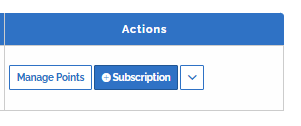
Once you do, the teacher will receive their membership license, as well as be sent a welcome notification to their email address.
Renew an Existing Teacher
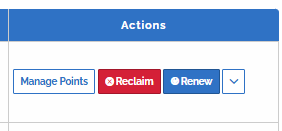
You can click the Blue "Renew" button to assign the teacher an active subscription.
Remove a Subscription from a teacher account
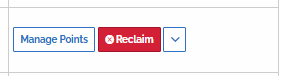
Click the Red "Reclaim" button to remove that teacher's membership license. This will add one available license to your Membership Seat Balance.
Read more about what you can do beyond provisioning in the Admin Dashboard guide.
Managing Points
Administrators may distribute points to teachers for purchasing instructional content.

When distributing points:
- Establish spending expectations.
- Communicate purchasing guidelines.
Strategic point allocation helps organizations maximize investment in instructional resources.
Supporting Successful Adoption
Provisioning an account is only the first step.
To maximize utilization:
- Provide onboarding training.
- Share implementation resources.
- Monitor login activity.
- Encourage early classroom use.
- Identify educators who may need additional support.
- Celebrate successful implementation examples.
Organizations that pair provisioning with training and ongoing support often see stronger adoption and better return on investment.
Training Opportunity
Training is available for all new and renewing Boom School accounts.
Boom Training Academy (BTA) helps educators get the most from their subscription by focusing on tools that matter most. Training is tailored to your team's needs, helping staff save time and drive consistent implementation.
To ensure a customized experience and preferred scheduling, we encourage you to book early.
Book your complimentary Boom School training session today.
If you already know what works for your team, please schedule a training session. If you would like to discuss training in advance, please contact our training expert, book a call to discuss a future training session.
Managing Staffing Changes
Staff movement is a normal part of school operations.
When a teacher leaves or changes roles:
- Transfer accounts when appropriate.
- Reassign subscriptions.
- Release accounts that are no longer needed
Purchase Additional subscriptions or points
Run out of points or subscriptions? No problem!
You can submit an add-on estimate directly through your School Dashboard from the subscription tab.

Next, click on the blue "Request New Estimate" button.

This will bring you to our Estimate Builder where you will be able to submit a quote for additional memberships and points.
The purchasing process is the same and you will receive emailed updates each step of the way until we fulfill your order.
Need Assistance?
If you encounter challenges during onboarding or provisioning:
- Contact Boom Learning Support
- Email us at Help@boomlearning.com
- Call us at (833) WOW-BOOM
- Review related School Dashboard guides
Training is available for all Boom School administrators
The Boom Training Academy (BTA) helps administrators quickly set up their teams, ensuring they can save time, streamline daily workflows, and get the greatest value from your district's investment. Training is tailored to your administrator's needs, including setting up sub-administrators.
Book your complimentary Boom School training session today.
To help us customize the session for your administrators and secure a time that works best for them. We encourage you to schedule as early as possible.
If you already know what time works for your administrator, schedule a training call, or if you would like to discuss it with our training expert in advance, contact us here.