The School Dashboard provides administrators with a centralized location to manage teacher accounts, subscriptions, points, and account access across their organization. Whether you're supporting a single school or coordinating resources across a district, the School Dashboard helps streamline account management, improve visibility, and ensure staff have access to the resources they need.
This article is intended for School Dashboard administrators and delegates. It does not apply to individual educator accounts.
If you are a School Dashboard manager and do not have your login information, please submit a help ticket using the Boom-E chat or email help@boomlearning.com.
Skip ahead to topics that matter to you here:
- Understanding The Dashboard
- School Information Tab
- Teachers Tab
- Managing Teacher Accounts
- Best Practices For Managing Teacher Accounts
- Subscription Tab
- Example: Supporting A District Program
- Governance And Security Recommendations
- Need Help?
Understanding the Dashboard
The School Dashboard is organized into three primary areas:
- School Information
- Teachers
- Subscription Management
Each area serves a specific administrative purpose
What You Can Do with the School Dashboard
The School Dashboard helps administrators:
| Goal | Dashboard Feature |
|---|---|
| Onboard and manage teachers | Teachers Tab |
| Monitor account engagement | Activity Tracking |
| Manage memberships | Subscription Management |
| Allocate purchasing resources | Points Management |
| Reassign accounts during staffing changes | Account Transfer |
| Delegate administrative tasks | Delegate Access |
| Monitor account status | School Information Tab |
These tools help reduce administrative workload while providing visibility into account usage and resource distribution. We offer training for administrators, read more below.
Who Typically Uses the School Dashboard?
The School Dashboard may be managed by:
- School principals
- District administrators
- Special education coordinators
- Curriculum directors
- Instructional technology specialists
- IT administrators
- Administrative support staff
- Designated School Delegates
Many organizations use delegates to distribute routine account-management responsibilities while maintaining administrator oversight.
Signing In
To access your School Dashboard:
- Navigate to the Boom Learning website.
- Select Sign In.
- Click the red I'm a School button.
- Select Sign in with Email/Username.
- Enter your School Dashboard credentials.
- The username and password were emailed to you when your order was fulfilled. You can recover your password through the email address linked to the School Dashboard account using the Forgot Password link.
After signing in, you'll see the School Dashboard navigation tabs used to manage your account.
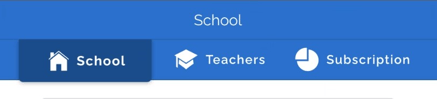
The next section of this guide goes into detail about what each of these tabs contain.
School Information Tab
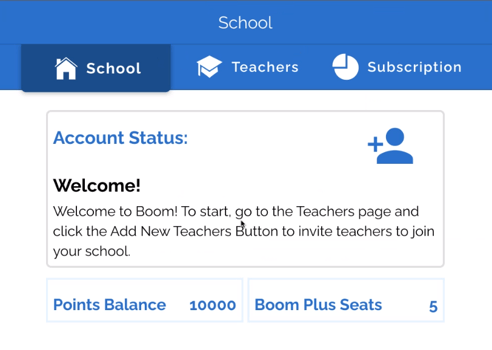
The School Information tab provides an at-a-glance overview of your organization's account. Administrators can review:
- Available subscriptions
- Available points
- Account status
- Subscription expiration information
- Pending teacher invitations
Account status indicators help administrators understand whether additional action is needed, such as assigning licenses or responding to upcoming subscription renewals.
Why This Matters
For district and school leaders, this tab serves as a quick operational dashboard to monitor licensing health and identify potential issues before they impact teachers
Teachers Tab
The Teachers tab provides a complete view of teacher accounts associated with the organization. Teachers are displayed alphabetically and can be managed directly from this location.
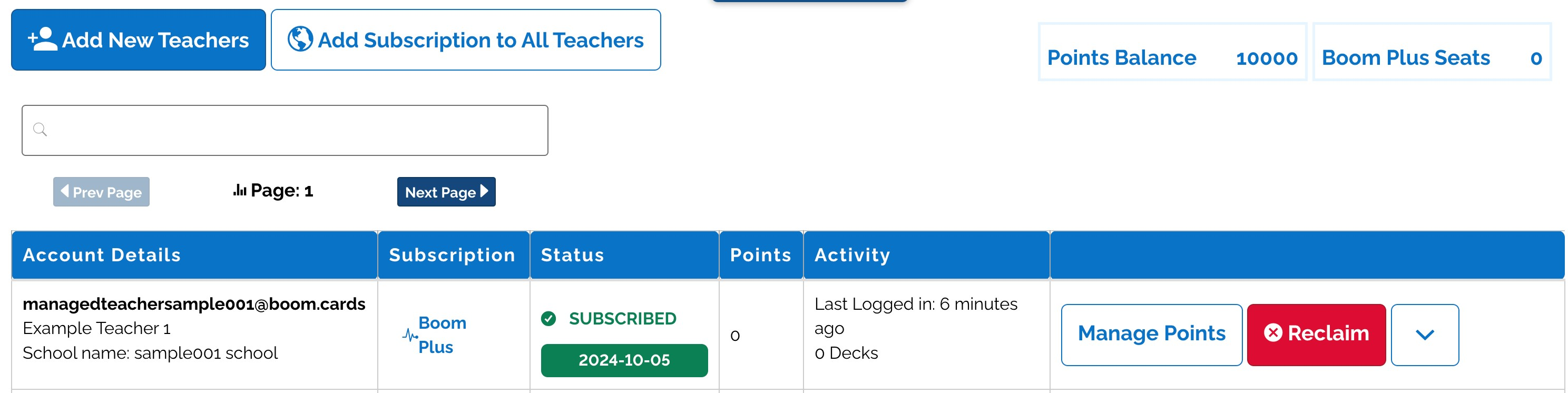
From the Teachers tab, administrators can:
- Add teachers
- Invite teachers
- Assign subscriptions
- Modify account information
- Transfer accounts
- Manage points
- Promote delegates
- Review account activity
Please note that linking a teacher account to the School Dashboard does not automatically assign a subscription. Teachers must still be provisioned appropriately. For specific instructions on how to add and upgrade your teachers, please refer to this separate guide: Adding and Provisioning Teacher Accounts with the School Dashboard.
Account Details
This section displays:
-
Email address
-
Username
-
School association
Administrators should periodically review account information to ensure records remain accurate and current.
Activity
The Activity field displays:
- The teacher's last login date
- The number of Boom Cards decks added to their library
This includes free resources as well as resources obtained through points purchases. Prior purchases made before joining the school account may also appear.
Using Activity Data
Activity information can help administrators:
- Identify teachers who may need onboarding support
- Monitor adoption of purchased resources
- Inform professional learning efforts
- Better understand utilization of district investments
- Support renewal and budgeting decisions
Providing actionable visibility helps organizations make more informed resource decisions.
Status
The Status field indicates a teacher's subscription state.
Possible statuses include:
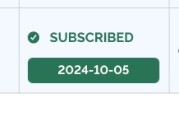
SUBSCRIBED
A green SUBSCRIBED status indicates the teacher is successfully assigned to your school's membership. The displayed expiration date should match the organization's subscription term.
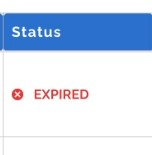
EXPIRED
A red EXPIRED status indicates a previous membership has lapsed.
Blank Status
A blank expiration date indicates a brand-new teacher with no membership applied.
Subscription
The Subscription field identifies what type of membership is currently assigned to a teacher account.
Administrators can quickly verify whether teachers have received the appropriate subscription and identify accounts requiring attention.
If "Starter" is listed, the teacher's account has expired.
Points & the Manage Points Button
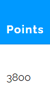
The Points field displays a teacher's current points balance. Administrators can use the Manage Points feature to transfer points to or from teacher accounts.
To add points:
- Enter the number of points to transfer.
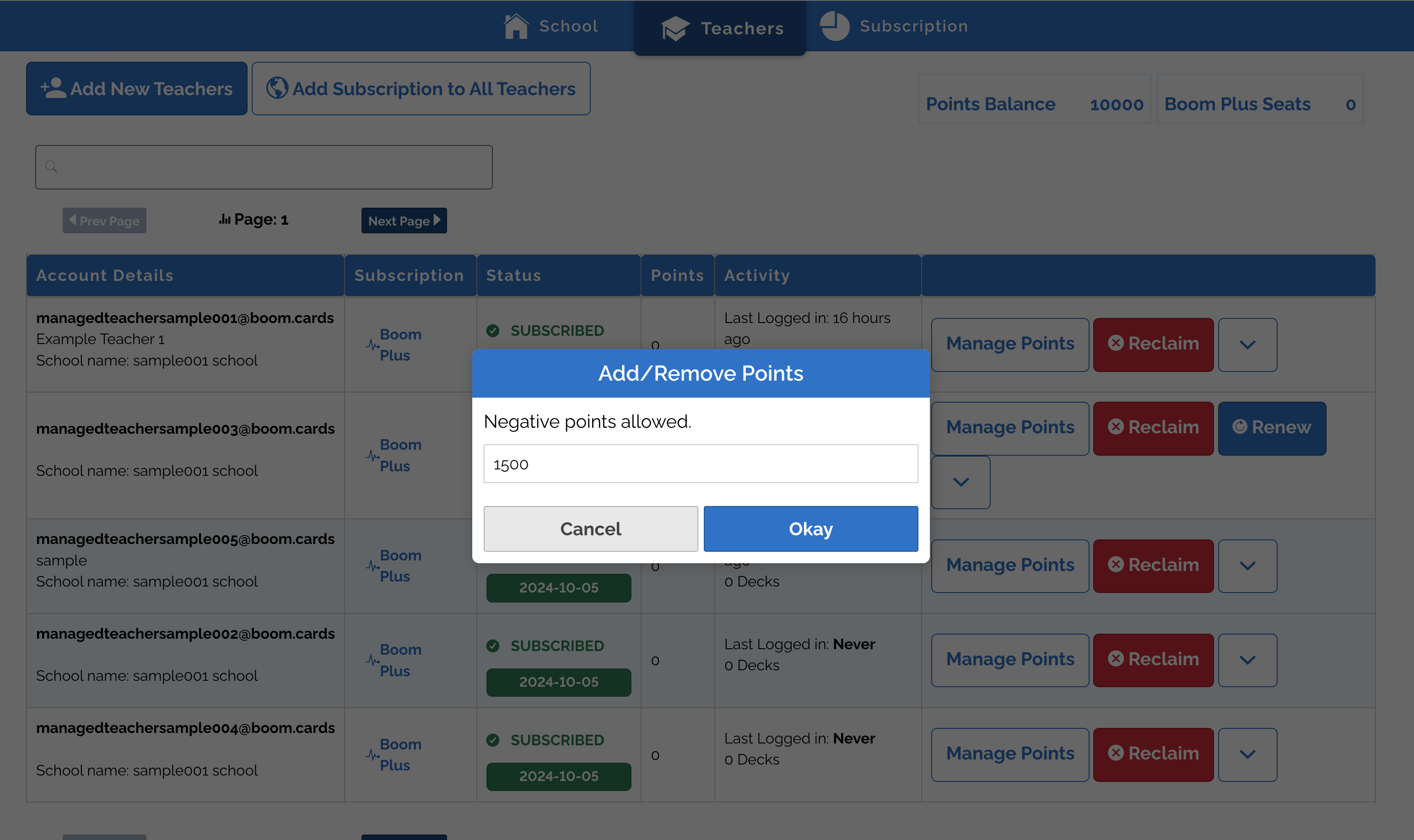
To remove points:
- Enter a negative value using the "-" symbol.
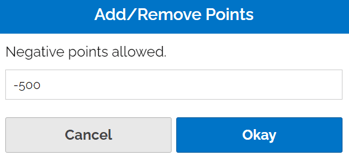
Administrators can review available school-level points within the School Information tab.
These two fields tie in together. The Points field shows you the current points balance of a teacher.
Managing Teacher Accounts
Account management actions are available through the dropdown menu beside each teacher account.
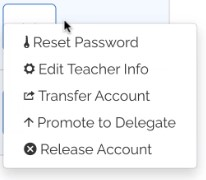
Reset Password
Sends a password-reset link directly to the teacher.
Edit Teacher Information
Allows administrators to update:
- Nickname
- Email address
- Username
If a requested username or email address is already being used by another account, an error will occur.
Transfer Account
The Transfer Account feature allows an account to be reassigned to a new teacher while removing the previous teacher's personal information. The new teacher retains access to the account's instructional resources and associated student data.
This function only works when the new teacher doesn't already have an account. For help to reassign an account to an existing teacher please contact help@boomlearning.com.
Administrative Considerations
Before transferring an account:
- Verify the transfer aligns with local policies.
- Ensure staffing changes are properly documented.
- Confirm the receiving educator has a legitimate educational need for continued access.
- Review district procedures governing student information and instructional data.
Organizations should follow all applicable privacy and data-governance requirements when transferring accounts.
Promote to Delegate
Delegate access enables trusted staff members to help manage the School Dashboard. Delegates can support account management, onboarding, and other administrative tasks without requiring credential sharing.
For additional information, see the Delegate Access guide.
Release Account
Removes a teacher account from the School Dashboard and returns ownership of the account and its contents to the educator. Find more information in the article: School/Org Admins: Removing Teachers From the School Dashboard
Best Practices for Managing Teacher Accounts
To maintain an organized and effective School Dashboard:
- Review teacher activity periodically.
- Verify account information annually.
- Remove or transfer accounts when staffing changes occur.
- Ensure subscriptions are assigned only to active users.
- Use delegate access instead of sharing credentials.
- Conduct periodic reviews of administrator and delegate permissions.
- Maintain documentation of account ownership and transitions.
These practices help reduce administrative workload while supporting security and continuity.
Subscription Tab
The Subscription tab contains important organization-level information, including:
- School name
- District information
- Location details
- Subscription counts
- Available points
- Subscription expiration dates
- Point distribution history
- Purchase history
Administrators can also use the Request New Estimate feature to obtain pricing for renewals or additional purchases.
You can find out more information on submitting add-on estimate requests in this guide, and information on submitting renewal requests in this guide.
Example: Supporting a District Program
A district Special Education Coordinator or Curriculum Director may use the School Dashboard to:
- Onboard new teachers quickly
- Monitor account activation and usage
- Manage staffing transitions
- Reassign instructional resources
- Delegate operational tasks to support staff
- Maintain consistent account-management practices across multiple schools
This approach reduces administrative burden while ensuring continuity and oversight across the organization.
Governance and Security Recommendations
Strong governance helps protect both staff and student information.
We recommend:
- Grant administrative access only to authorized personnel.
- Assign delegates when operational support is needed.
- Remove access promptly when employees change roles or leave the organization.
- Periodically review user permissions.
- Follow district and local data-governance requirements.
- Avoid sharing administrator credentials between users.
Effective oversight helps maintain account security and operational consistency across schools and departments.
Need Help?
If you have questions about managing your School Dashboard:
Contact Boom Learning Support:- Email us at Help@boomlearning.com
- Call us at (833) WOW-BOOM
Training is available for all Boom School administrators and Educators
The Boom Training Academy (BTA) helps administrators
-
Quickly set up their teams, ensuring they can save time,
-
Streamline daily workflows
-
Get the greatest value from your district's investment.
Training is tailored to your administrator's needs, including setting up sub-administrators aka delegates.
The Boom Training Academy (BTA) helps educators
- Learn the basics
- Find resources faster
- Use Boom with confidence
Training is tailored to your team's needs, helping staff save time and drive consistent implementation.
To ensure a customized experience and preferred scheduling, we encourage you to book early.
Book your complimentary Boom School training session today.
To help us customize the session for your administrators or educators and secure a time that works best for them. We encourage you to schedule as early as possible.
If you already know what time works for your team, schedule a training call, or if you would like to discuss it with our training expert in advance, contact us here.