
If your school uses a Learning Management System (LMS), you can easily share Boom Cards with students without asking them to search for a deck or find it in their Boom dashboard. Simply post a HyperPlay Link in your LMS, and students can launch directly into the activity.
For teachers who are new to Boom Learning, this is often the easiest way to fit Boom Cards into existing classroom routines and digital workflows. Once students click the link and sign in, Boom Learning automatically records their progress and performance.
Table of Contents
- What are HyperPlay Links
- Before You Begin
- How To Create A HyperPlay Link
- How Students Use A HyperPlay Link
- Sharing HyperPlay Links In Your LMS
- Viewing Student Results
- Troubleshooting
- Summary
- New To Boom Learning? You're Not Alone.
What Are HyperPlay Links?
A HyperPlay Link is a shareable URL that opens a Boom Card deck for students after they sign in to Boom Learning. HyperPlay Links are generated using HyperPlay and can be posted anywhere you normally share assignments online.
Why Teachers Use HyperPlay Links
- Students can access Boom Cards directly from your LMS.
- Student progress and performance are tracked automatically.
- No need to assign the deck inside multiple systems.
- Students are guided through the login process and taken directly into the deck.
- Teachers can view results in Boom Learning Reports.
Before You Begin
Make sure:
✅ Students have Boom Learning accounts.
✅ Students know their usernames and passwords.
✅ The deck is available in your Library.
✅ You have access to your LMS.
Important: HyperPlay Links only work for students who can log in to Boom Learning. If your students do not have usernames and passwords, consider using a Fast Pin instead.
How to Create a HyperPlay Link
- Open your Library.
- Locate the deck you want to share.
- Click the Action button.
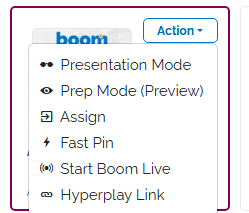
- Select HyperPlay Link.
- Copy the generated URL.
- Paste the URL into your LMS assignment, announcement, or lesson page.
How Students Use a HyperPlay Link
When students click a HyperPlay Link:
- They are prompted to sign in to Boom Learning.
- The deck launches automatically.
- Students complete the activity.
- Their progress and performance are recorded for the teacher.
This makes HyperPlay Links a great option when you need both convenience and data collection
Sharing HyperPlay Links in Your LMS
Google Classroom
- Create a new Assignment, Material, or Announcement.
- Paste the HyperLink into the description or attach it as a link.
- Save or assign the post.
- Students click the link and sign in to Boom Learning before starting the deck
We offer, a Google Add-on for managed users for easier assigning. Read more here: Boom Cards in Google Classroom
Canvas
- Create a new Assignment, Module item, Page, or Discussion.
- Paste the HyperLink into the content area.
- Save and publish.
- Students access the deck directly from Canvas and sign in to Boom Learning.
We offer, a Canvas Add-on for managed users for easier assigning. Read more here: Creating an Assignment in Canvas
ClassLink
- Click Assign with a Link.
- Choose the class or roster of students you want to assign the assignment to.
- Add the HyperPlay Link to the assignment
- Set Availability and Due Dates
- Confirm Assignment
Schoology
- Create an Assignment, Page, or Update.
- Paste the HyperPlay Link.
- Publish or save.
- Students click the link and log in before playing.
Other LMS Platforms
The same process works for:
- Clever
- Blackboard
- PowerSchool
- Seesaw
- Moodle
- Any LMS or website that supports external links
Simply paste the HyperPlay Link wherever you normally post assignments or resources.
Viewing Student Results
After students complete the activity:
- Open Reports.
- Select the classroom.
- Select the appropriate folder (if applicable).
- Select the deck title.
- Review student performance and progress data.
This is especially useful for progress monitoring, intervention planning, and tracking student growth over time.
Read more about reports here: Student Data Reports (Grades And Progress)
Troubleshooting
Students cannot access the deck.
Verify that:
- Students have active Boom Learning accounts.
- Students are using the correct login credentials.
- Your school's network allows access to Boom Learning.
The link doesn't work inside the LMS.
Contact your school's IT department to ensure Boom Learning domains are allowed within your LMS environment.
I need student data but students don't have accounts.
HyperPlay Links requires student logins. Consider creating student accounts or using another sharing method based on your instructional goals.
You can review all Sharing methods here.
Students are being asked to sign in.
This is expected behavior. HyperPlay Links require students to log in to Boom Learning.
Students cannot see their reports.
HyperPlay Link reports are available to teachers. To allow students to view reports, assign the deck directly to the student or classroom.
The deck opens but no assignment appears in the student's dashboard.
This is normal. HyperPlay Links launch the deck directly and do not create a traditional assignment in the student's account.
Summary
HyperPlay Links are the best way to share Boom Cards through an LMS while maintaining access to reporting and custom play settings. Create a HyperPlay link, post it in your LMS, and students can launch directly into the deck after signing in. This makes HyperLinks an excellent choice for Google Classroom, Canvas, Schoology, Moodle, Microsoft Teams, and other digital learning environments.
New to Boom Learning? You're not alone.
Our Boom Training Academy materials help educators learn the basics, find resources faster, and use Boom with confidence so that you can spend less time figuring out technology and more time with your students.
Interested? Access and interact with Courses here: Boom Training Academy
Are you a part of a managed Boom School account? Get private training! Ask your school or district administrator to schedule a complimentary training session with us.
If you have any further questions, please feel free to email us at help@boomlearning.com or call us at (833) WOW-BOOM. A real human will happily help you!