
What does Downgrading mean?
Downgrading your account means that you are removing your current membership tier's features from your account and implementing the limitations of the membership you choose.
If you have an active Premium membership that is not set to expire for a month, downgrading to an unpaid account will remove the paid features from your account and you will lose those remaining days of Premium features.
A downgrade does not include a refund, if you are not satisfied with your paid membership, please contact the helpdesk to see if you qualify for a partial or full refund.
If you are looking to downgrade to prevent being charged, Downgrading WILL NOT impact your active auto-renewal if you opted into one.
See how to prevent being charged in the article, Managing your Membership Renewal
How to downgrade
You can downgrade an account in the Membership tab of "My Settings". From there, you can find a record of all your Payment Transactions as well as your current points balance and your membership status. If you have a free promotion, you may end your free promotion at any time and shift to a different account level.
If you downgrade your active membership, you will lose access to all paid features. If you are downgrading to avoid being charged for renewal, you should Cancel your membership. You can find more information in the Managing your Membership Article.

Once you enter your settings screen, you will see a new menu below the main blue navigation bar. Select "Membership." You will see your membership information and your points as well as your history of transactions. To change your membership, click the "Change/Renew" button.

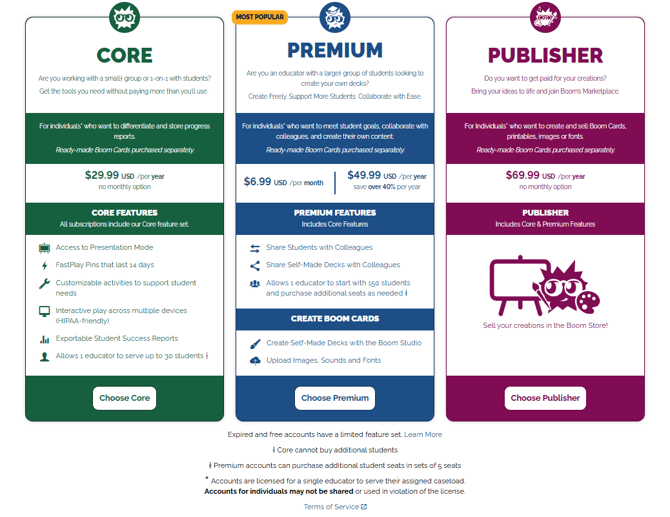
You will be taken to a new page where you can see your membership status and a breakdown of all the membership tiers. To downgrade to a lower tier, press the "downgrade" button in the column of your desired membership.
A modal will pop up that will allow you to select the membership tier that you would like to select.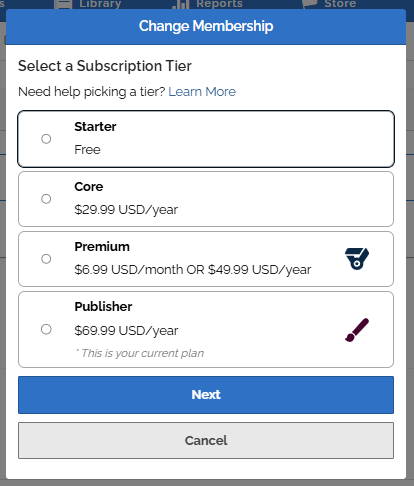
Read about all of our individual teacher paid memberships below.
If you have any further questions, please feel free to email us at help@boomlearning.com or call us at (833) WOW-BOOM. A real human will happily help you!